Getting Started
Overview
Enablix is your organization's content library.
- Find content featured on the homepage or through search.
- Share content via trackable links from Enablix or through extensions.
- Track engagement to see what content is working and which accounts are engaged.
Your User Profile
Access your user profile by clicking your profile icon, then selecting User Profile:
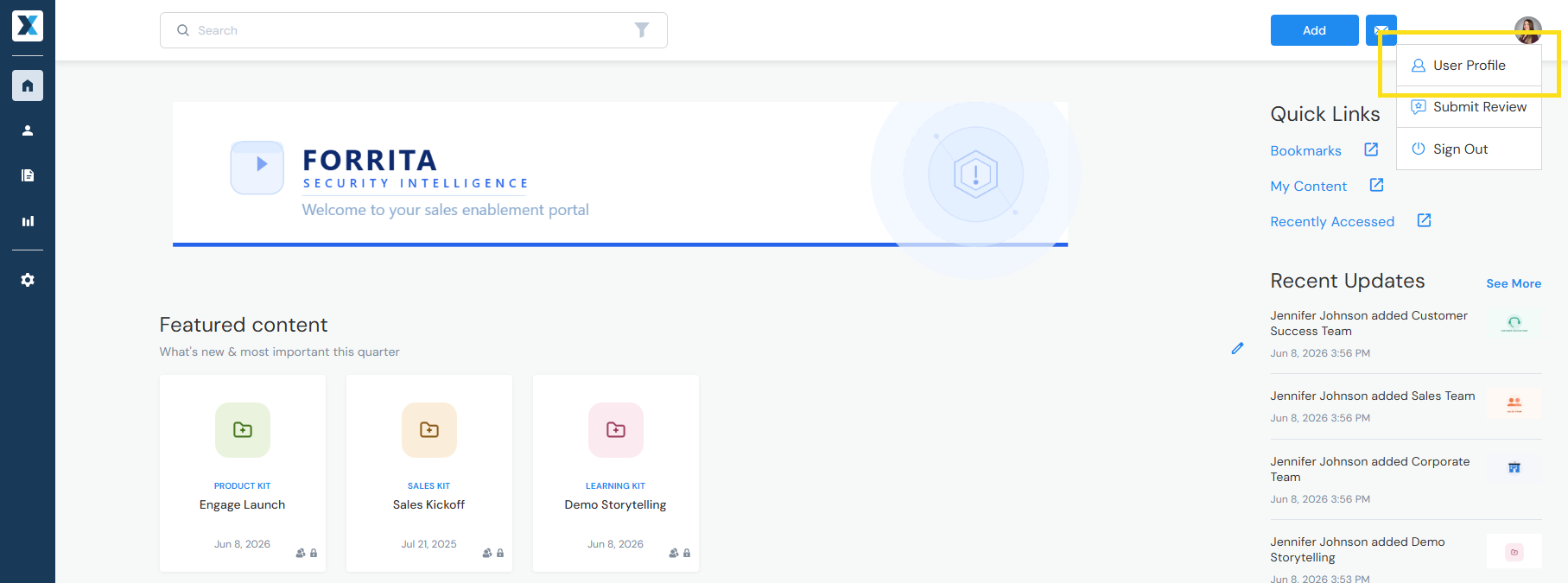
From there you can view and update your:
- User Details* — Your contact information, such as your name, picture, and title
- Email Notification Preferences — Which email notifications you receive when your accounts view your shared content and more
- Slack or Microsoft Teams Integration — Connect with Slack or Teams to share content to a channel
- Mailbox Integration — Connect your email and add your signature to share content via email from Enablix
Navigating Enablix
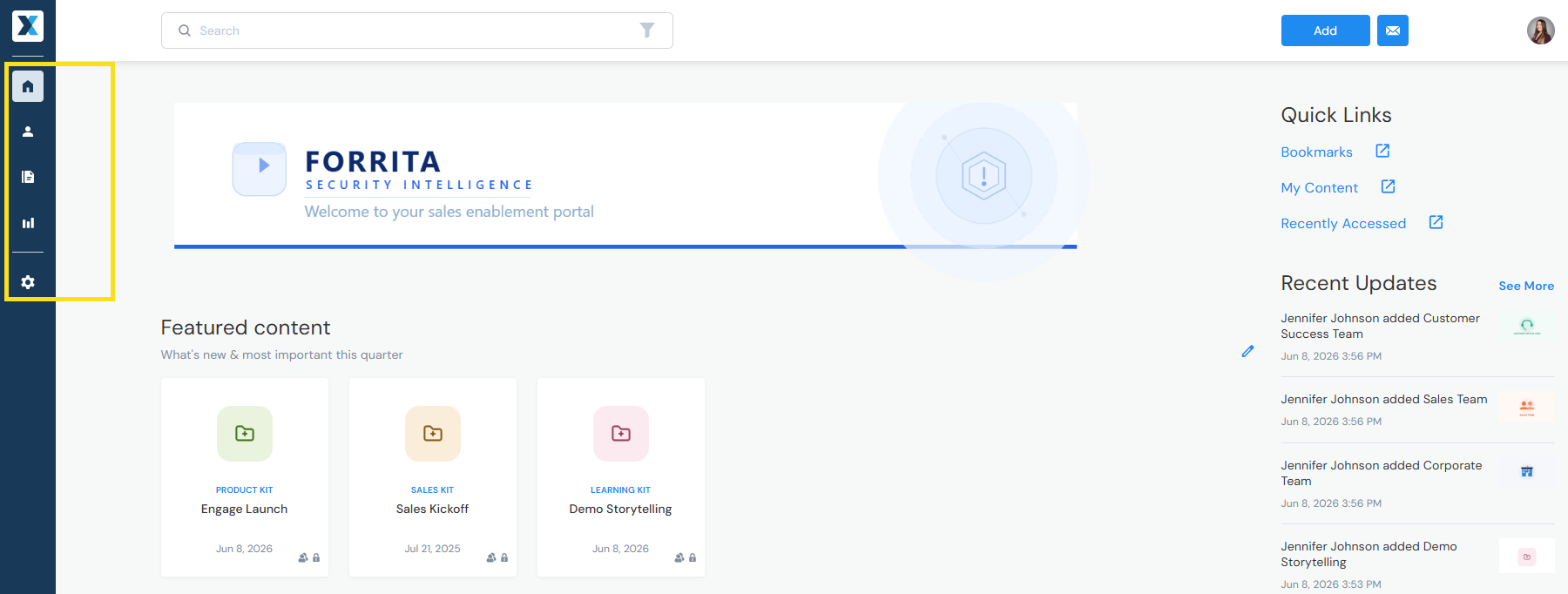
Navigate Enablix using the left-hand navigation bar:
- Home — Access content, your bookmarks, and more
- My Stuff — Your user reporting dashboard (track engagement on your shared content)
- Content Manager — Manage content and workflows
- Insights — Admin reporting dashboard (track engagement across all shared content)
- Company Settings — Admin settings such as user management, homepage layout, and more
Accessing Enablix
You're already in — but here are more ways to access Enablix:
- Web (full experience) — Access from your browser at yourcompanyname.enablix.com
- iPad (full experience) — Access on your iPad via the web or by downloading the mobile app (search "Enablix" in your app store)
- Salesforce (full experience) — Access from Salesforce
- Mobile (limited experience) — Access on your mobile device via the web or by downloading the mobile app (search "Enablix" in your app store)
- Extensions (limited experience) — Access from browser extensions, email apps, and more
Have a question? Email us at help@enablix.com.