Metadata
Metadata organizes your content. When accessing content, it appears on the left and is searchable.
- Title (required)
- Content Type (required)
- Categories & Labels (recommended)
- Version date
- Description
- Excerpt
- Shareable
- Access Groups
- Collaborators
- Thumbnails
- Owner
- Properties
Title (required)
Visible to external recipients.

Content Type (required)
Defines what type of content it is — blog, presentation, video.
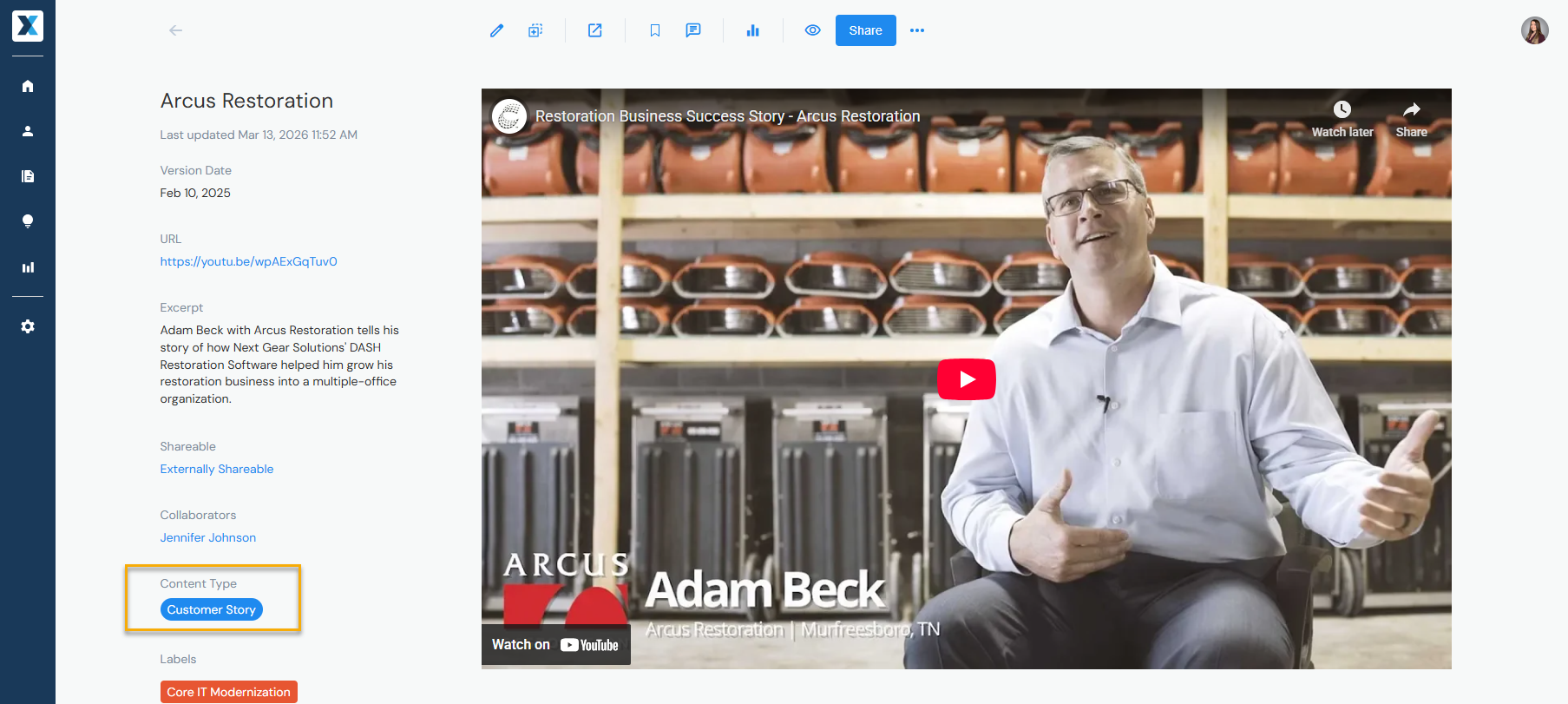
To update it, hover over the three dots to the right of Share and select Change Content Type.

Admins can manage Content Types in Company Settings > Content Types.
Categories & Labels (recommended)
Organize by industry, solution, and more.

Admins can manage Categories and Labels in Company Settings > Categories & Labels.
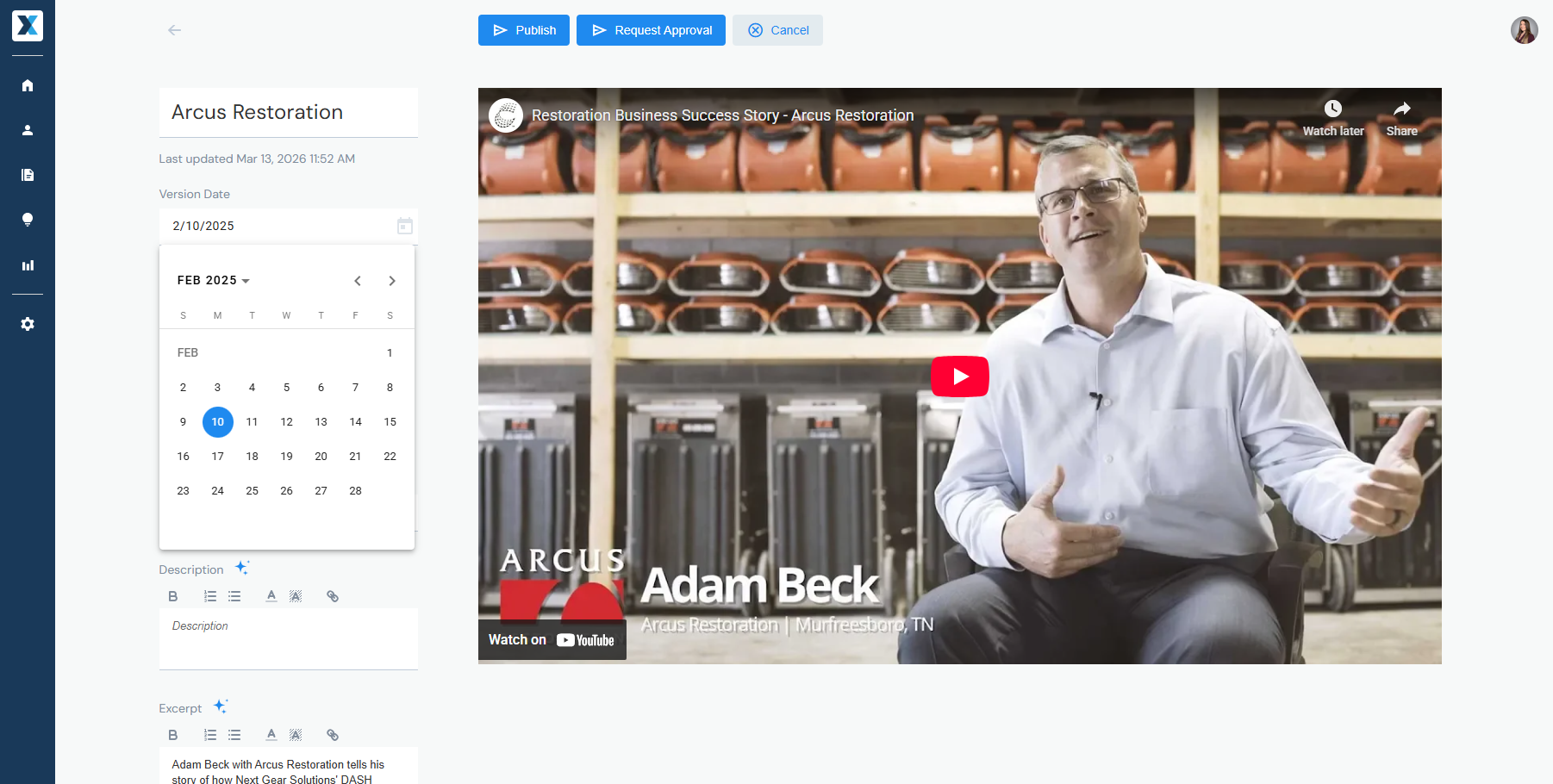
Version Date
Defaults to the date it was last updated, but you can manually select a different date if needed:
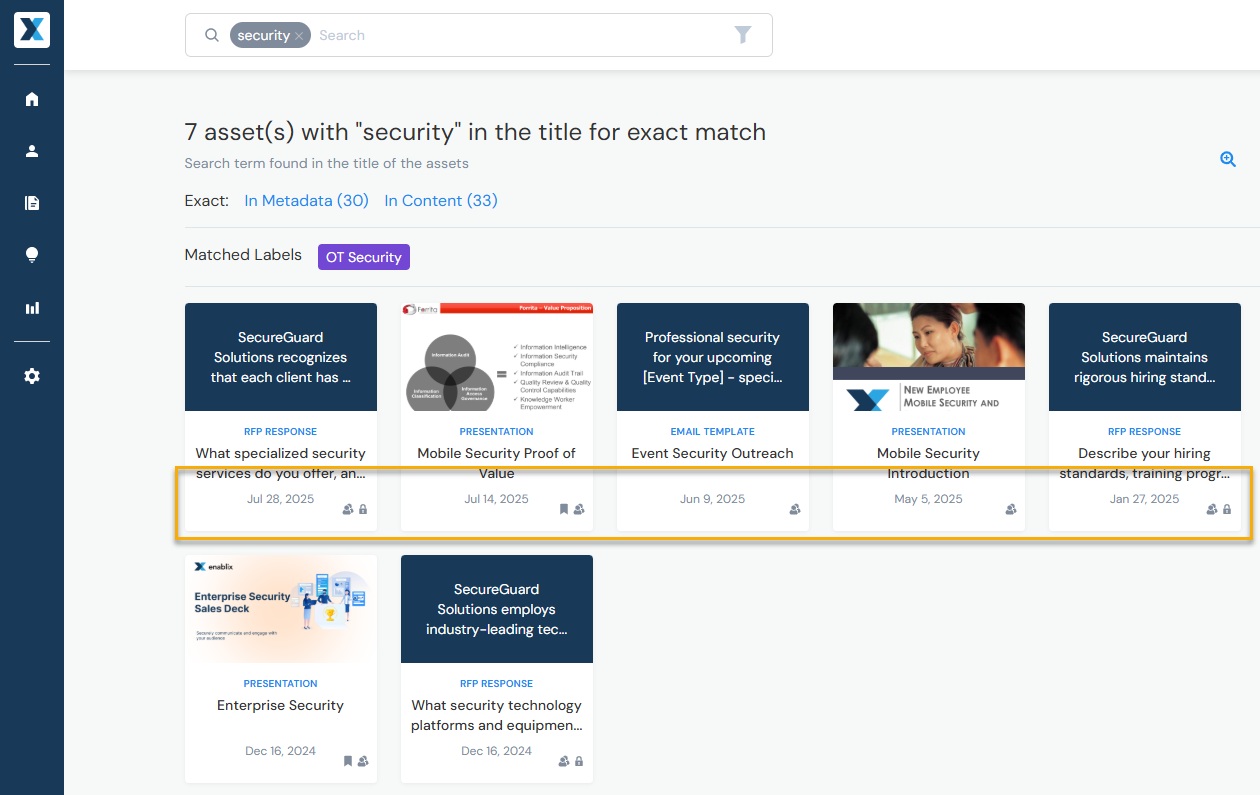
Search results are displayed by latest version date:
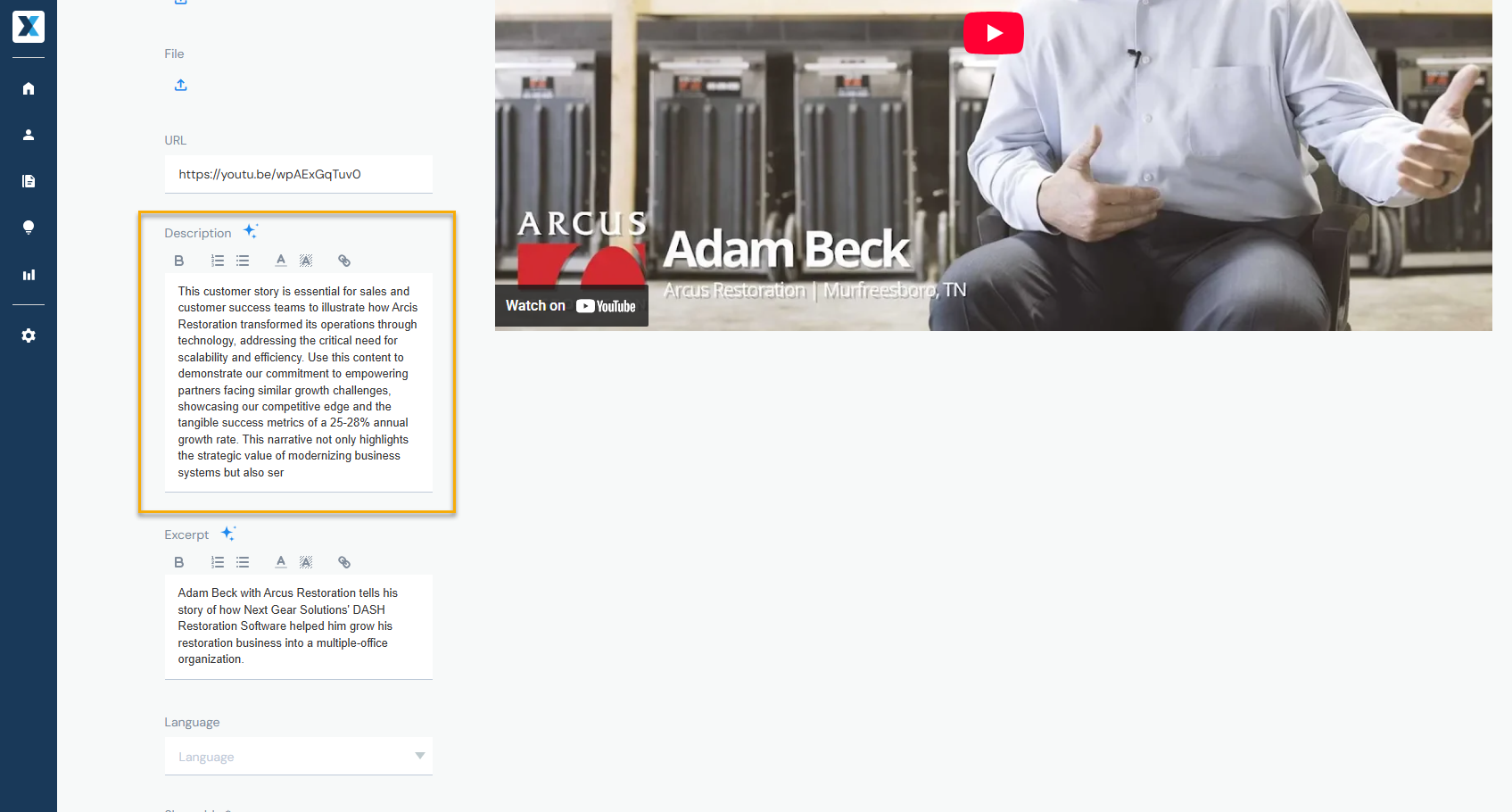
Description
Internal description — only visible to Enablix users:
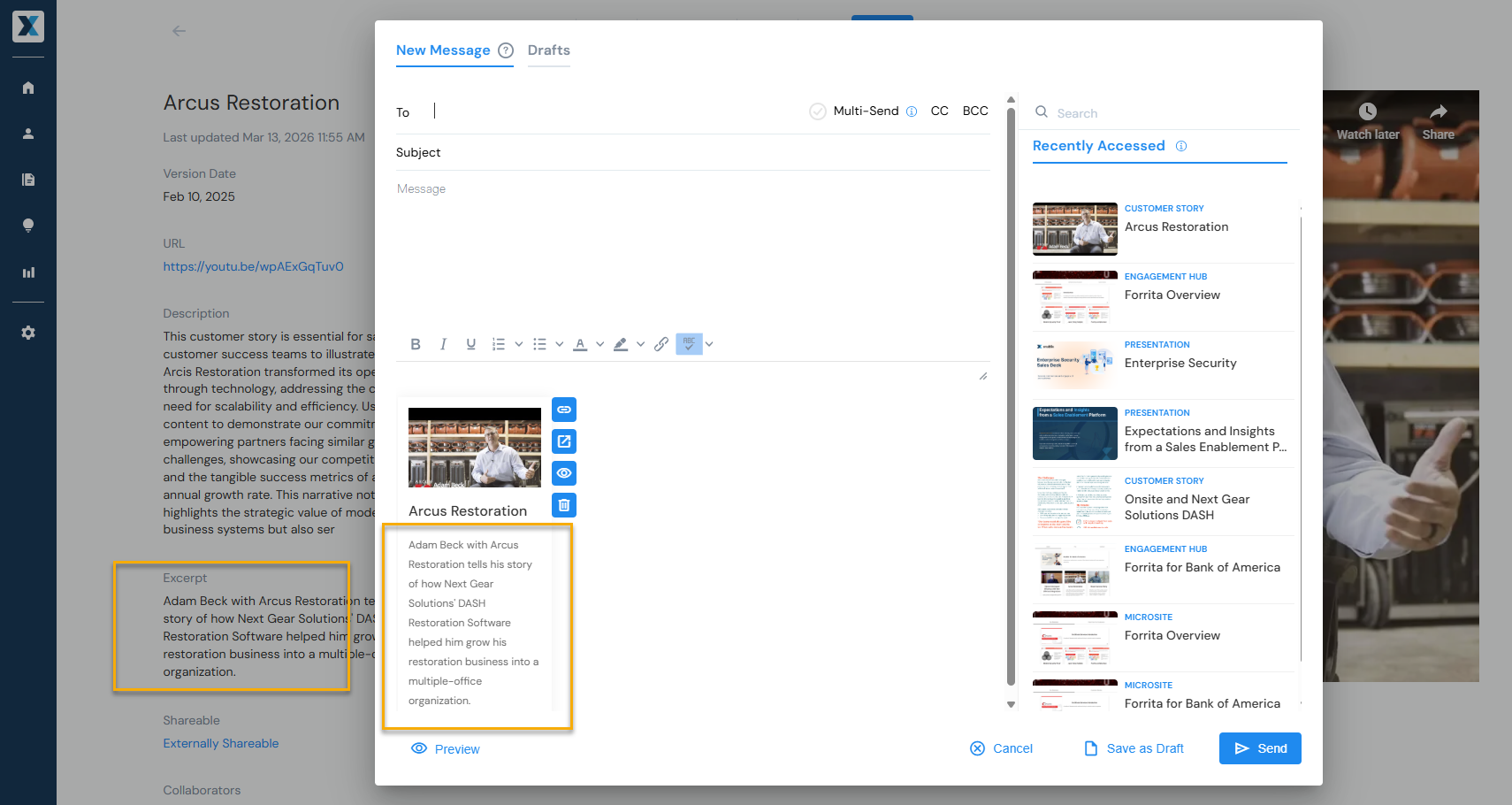
Excerpt
External description — visible to external recipients when:
- Shared by emailing from Enablix
- Included in a shared Engagement Hub or Microsite
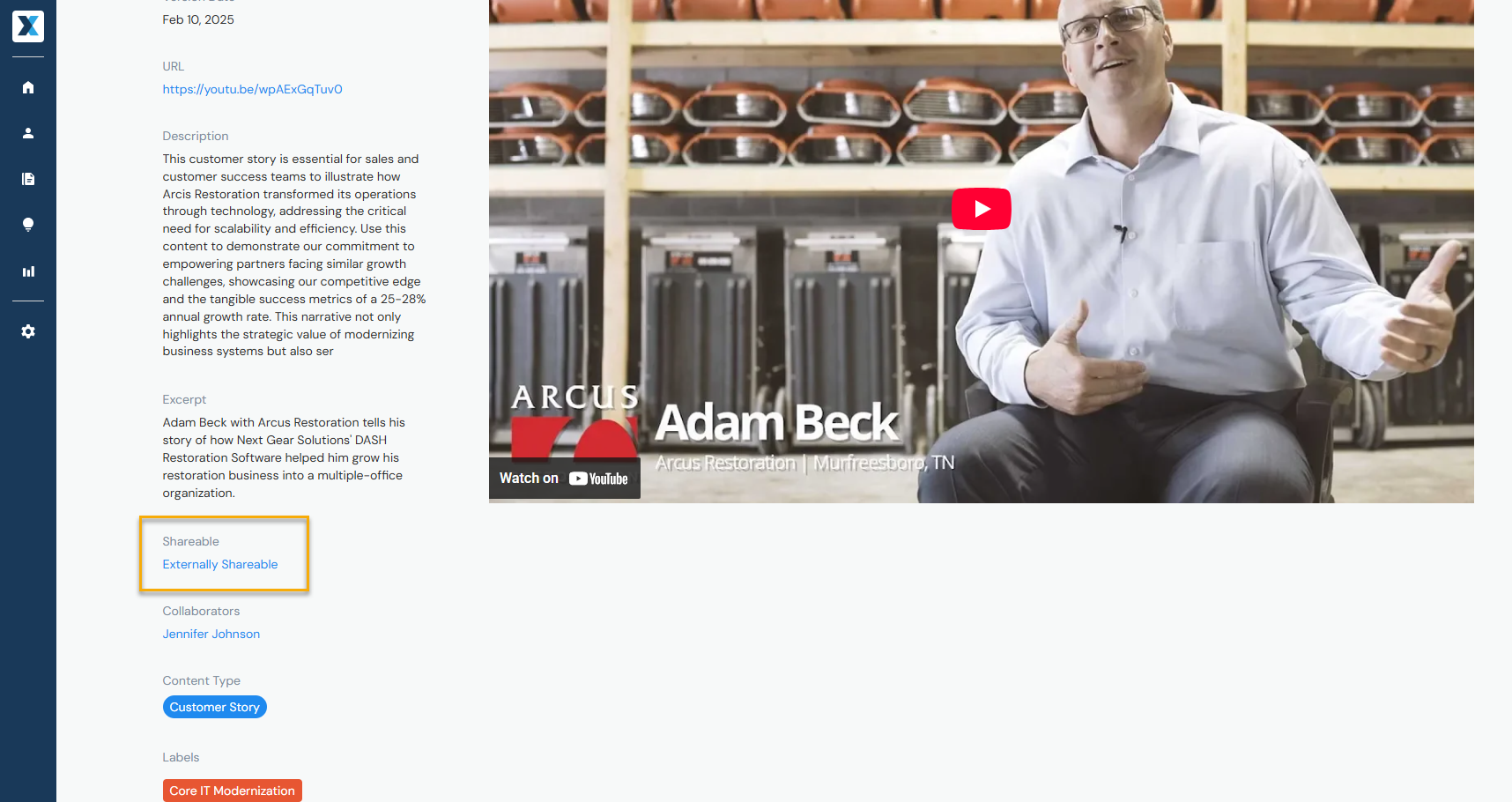
Shareable
Controls who the content can be shared with:
- Externally Shareable — can be shared with external recipients
- Internal & Confidential — can only be accessed by Enablix users
Access Groups
Published content is accessible to all Enablix users. To limit visibility by user group, assign an Access Group such as "Only Admins" or "Only Sales."
You cannot assign an Access Group to content saved as Save as My Content.
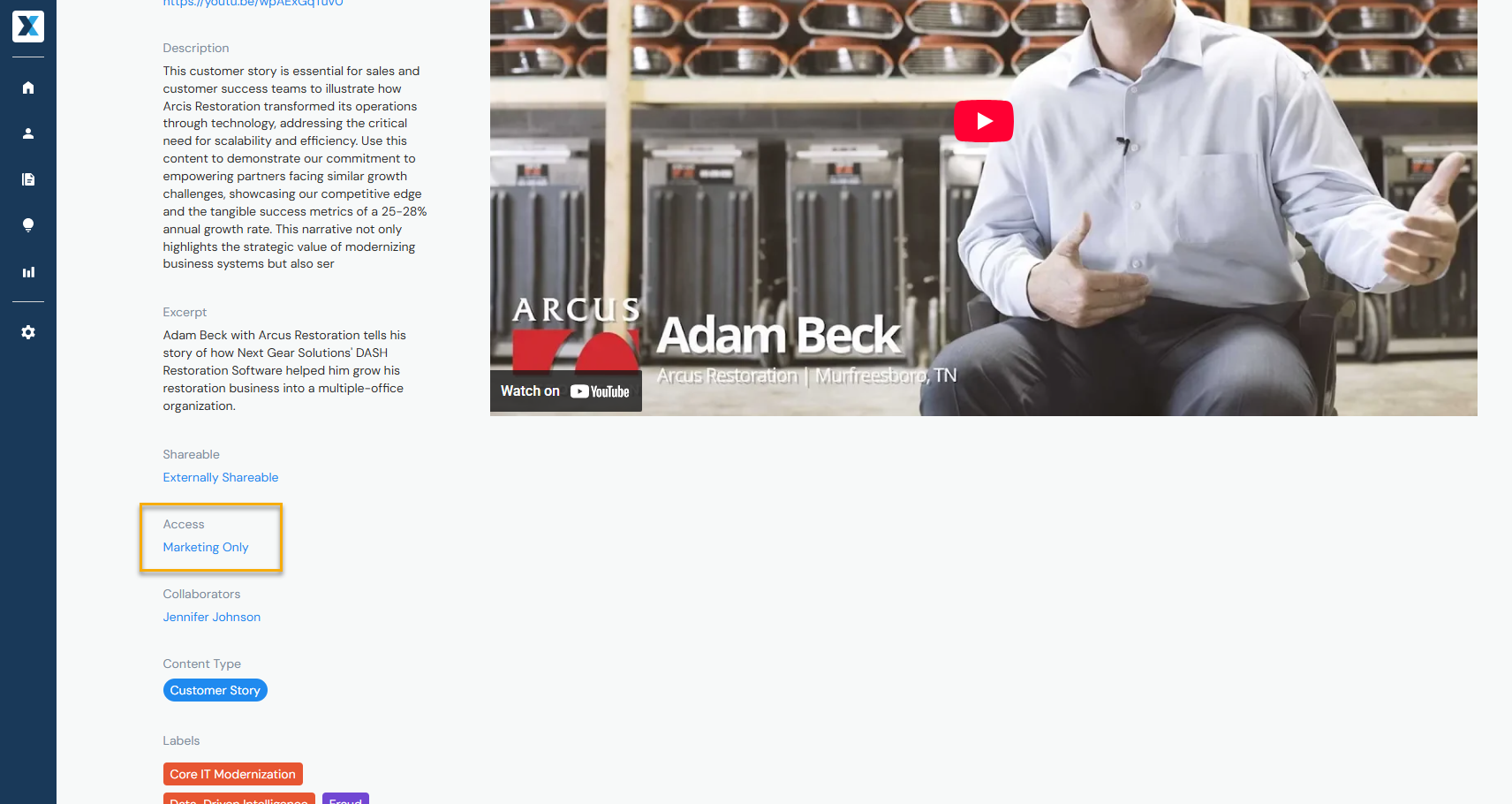
Admins can manage Access Groups in Company Settings > Access.
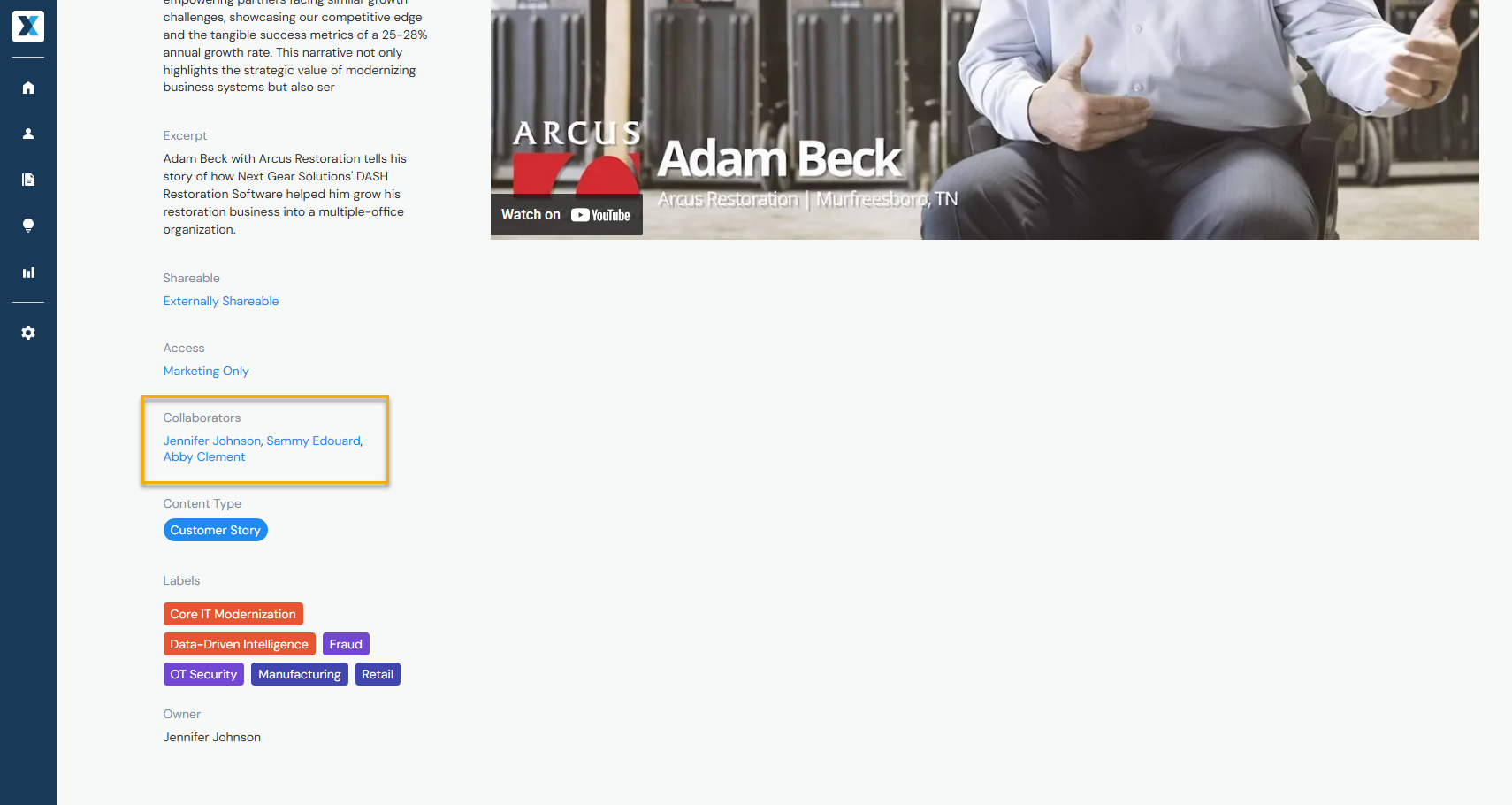
Collaborators
When collaborators are added, they can:
- Access it, even if it was saved as Save as My Content
- Receive email notifications when it gets updated or deleted
- Edit the content (save options vary based on your system role)
Since there can only be one owner, collaborators can be used to show shared ownership.
Thumbnails
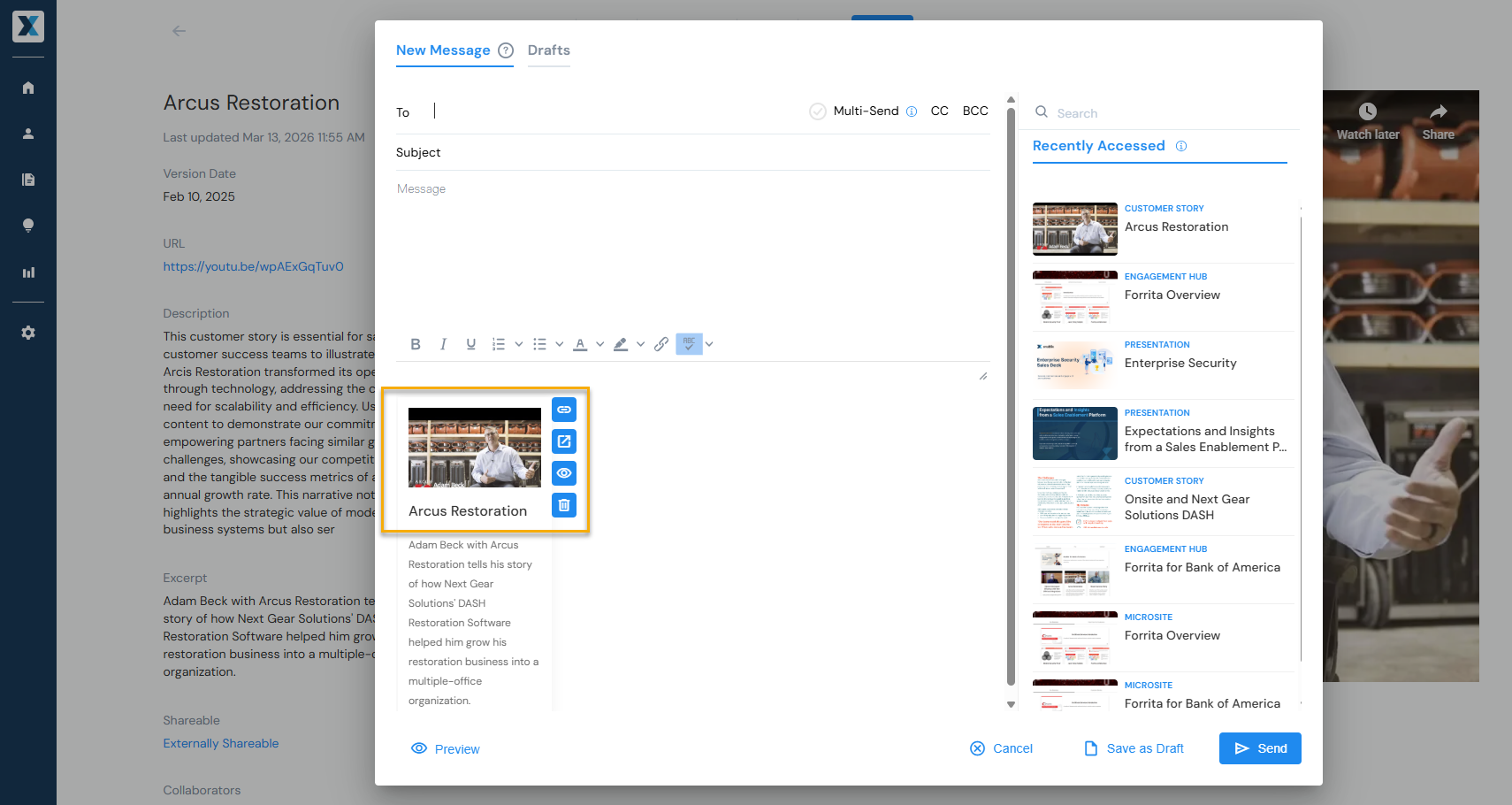
Thumbnails are automatically generated when possible. If a thumbnail can't be generated — such as when the file format isn't supported or the URL doesn't allow third-party embedding — you can add one manually.
Visible to external recipients when:
- Shared by emailing from Enablix
- Included in a shared Engagement Hub or Microsite
- Shared to CX — Enablix's customer and partner solution (if applicable)
Recommended thumbnail size: 360x200 pixels.
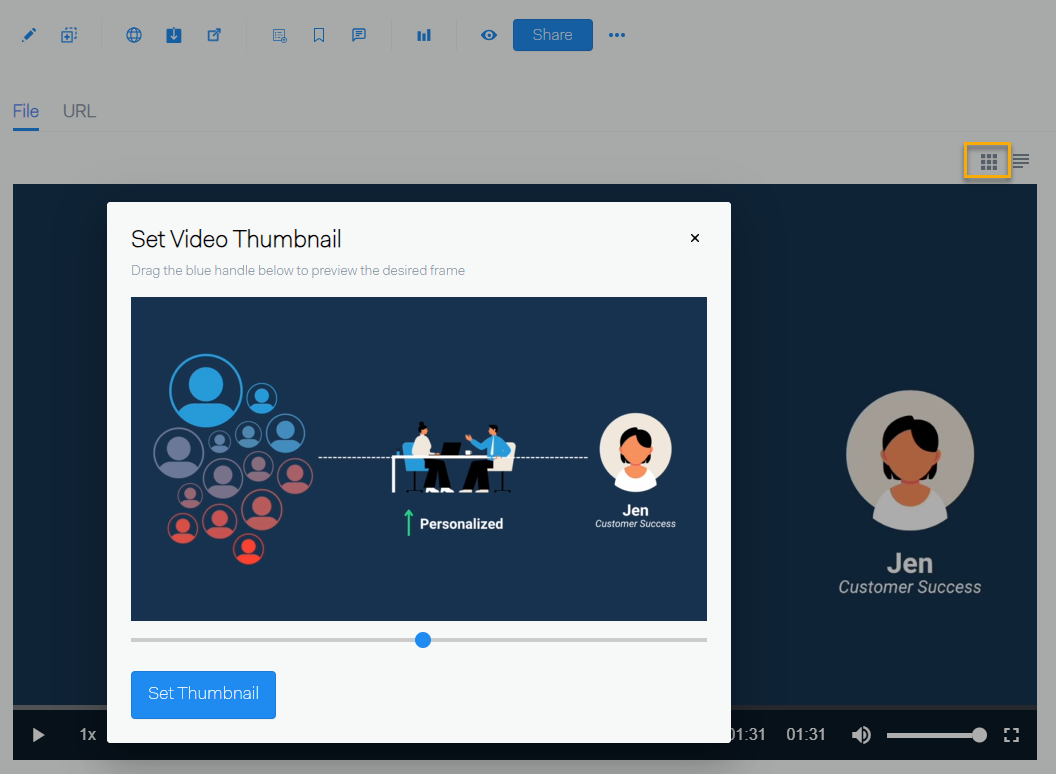
For MP4 format, you can also click Select Video Thumbnail to choose a frame from the video as the thumbnail:
Owner
Defaults to the user who added the content.
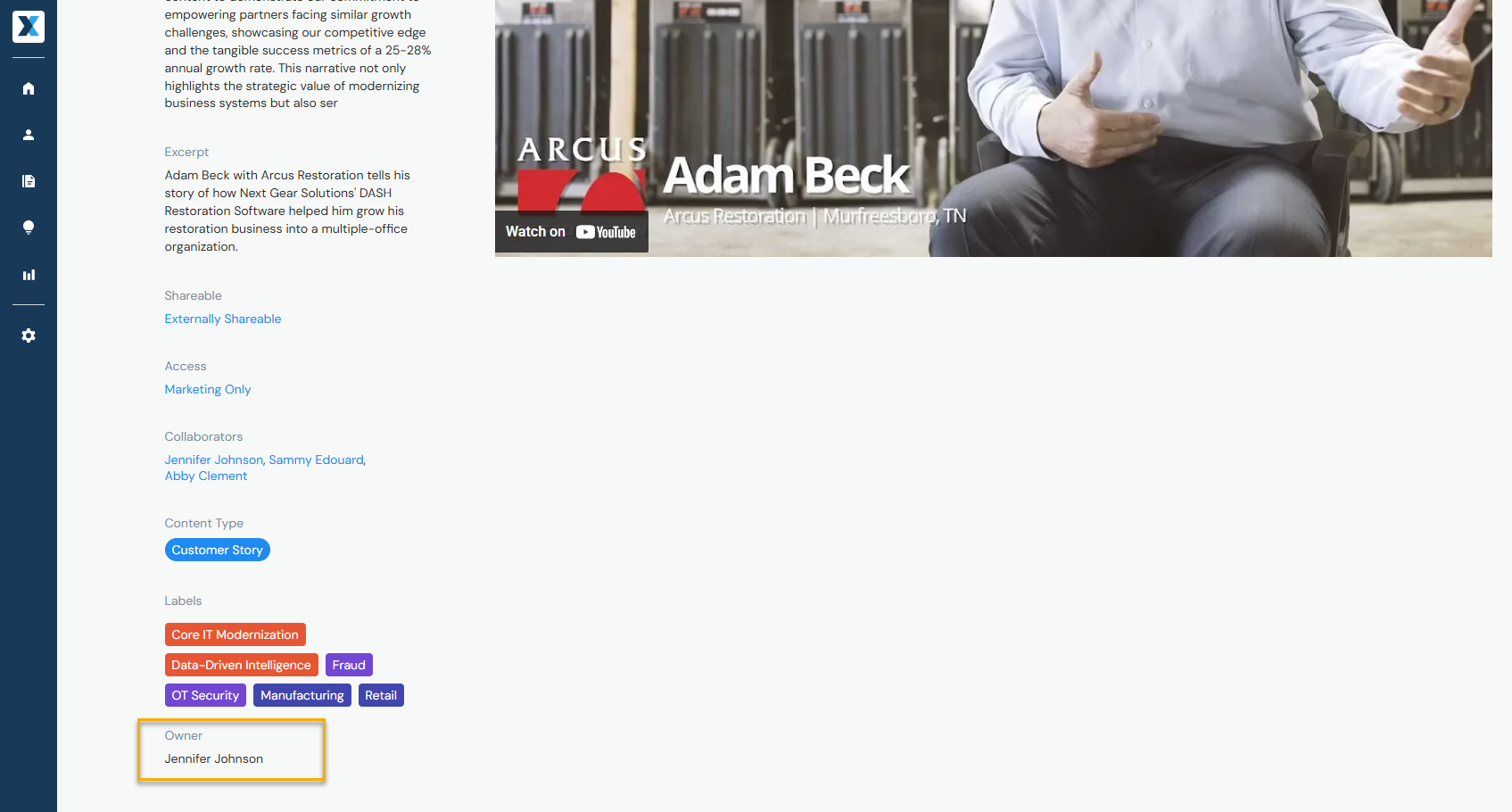
To update, hover over the three dots to the right of Share and select Change Owner.

Properties
Need more options? Properties are customizable metadata fields that let you organize content beyond the standard options.
Admins can manage Properties in Company Settings > Properties.

Need help getting started? Join an Enablix walkthrough — live or on demand — or reach out to us at help@enablix.com.