External Sharing Options
Use these options when sharing content with prospects and customers. Sharing content with other Enablix users? Use internal sharing options.
Note: When you share content via these options, the links can be customized before and after sharing, including download permissions, access restrictions, and more.
Copy External Link
- Hover over Share and click Copy External Link.
- Enter who you're sharing with for tracking purposes
- Individual recipient? Add their name or email
- Multiple recipients? Add their account name
- Click Copy Link and paste it wherever you communicate
Start your email from the homepage or the content you want to share:
View sent emails from your email's sent folder or in My Stuff > Email Activity. Click into an email's subject line to view the email, recipients, and which content was viewed — and which recipient viewed it:
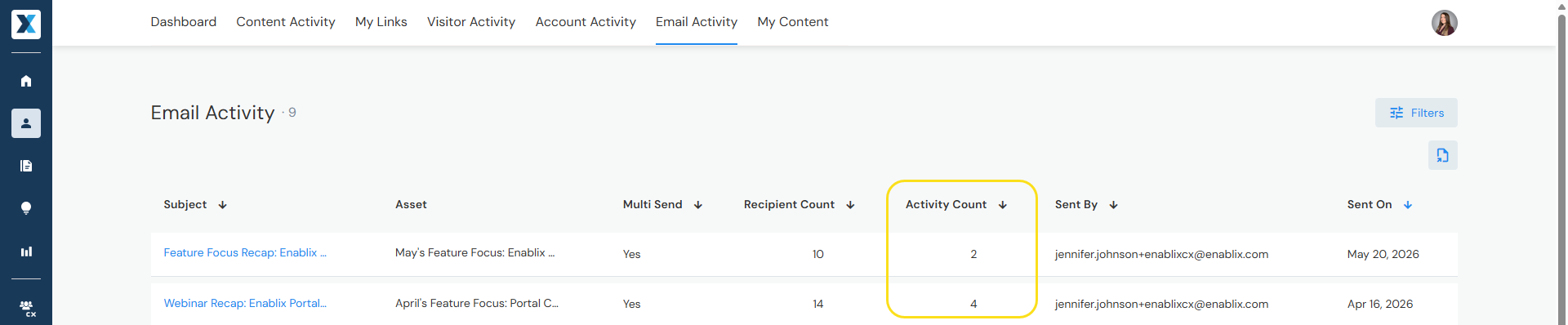
Note: Enablix tracks when content is viewed from your sent email — not whether the email was opened.
Present
- Hover over Share and click Present.
- Enter who you're presenting to for tracking purposes
- Individual recipient? Add their name or email
- Multiple recipients? Add their account name
- Don't want to track? Check Do Not Track
- Click Present — content opens in full screen.
Why present from Enablix?
- Content is always up to date — no risk of sharing an outdated version
- Full screen mode hides the toolbar and sidebar to keep the focus on your content
Extensions
Share content via:
- Email apps — Gmail and Outlook
- Browser extensions — Chrome or Edge
- Social — LinkedIn
- CRM — Salesforce and HubSpot
- Sales engagement platforms — Gong, Outreach, or Salesloft
- Email marketing platforms — HubSpot, Marketo, or Salesforce
- Mobile — Enablix Mobile App
Don't see an extension for the platform you use? Enablix offers flexible sharing options that can be configured for other platforms — reach out to your CSM or contact us at help@enablix.com.
Have a question? Email us at help@enablix.com.